Upcoming Appointments Details Panel
The Upcoming Appointments Details panel is used to review additional information for service appointments associated with XtreamService leads, such as appointment times and customer names. This section can also be used to access the Lead Sheet panel, where leads can be viewed and printed.

|
To access the Upcoming Appointments Details panel, click a row on the Upcoming Appointments tab on the Opportunities panel. |
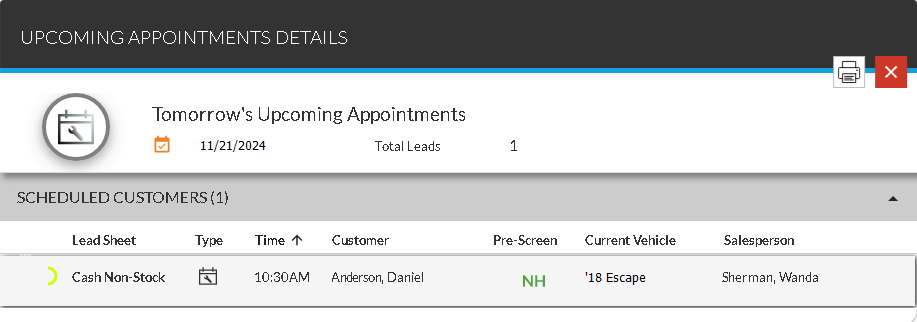
To print the lead sheets for the leads displayed on this panel, click the  (Print) icon. The PRINT button displays in place of the (Print) icon, and check boxes display in each row in the section. Select the check box corresponding to each lead sheet to print, and click the PRINT button. The lead sheets for the selected leads display on a separate browser tab, where they can be reviewed and printed.
 General Information Section
The unlabeled General Information section is used to review the date on which the displayed appointments are scheduled and the number of hot leads associated with appointments for that day.
The following items display in the General Information section.
 (Appointment Date): The date that the appointments are scheduled displays.
Total Leads: The number of appointments associated with XtreamService leads displays.
Scheduled Customers Section
The Scheduled Customers section is used to review lead information for service customers with appointments who have not arrived at the service department. Information is sorted by the scheduled time for the appointment, beginning with the earliest appointment.
Click any column heading that displays in bold text to sort the customers. The customers are re-sorted by the entries in the selected column in ascending order, and the  (Ascending) icon displays to the right of the selected column heading.
To change the sort to descending order, click the same column heading again. The customers are re-sorted in descending order, and the  (Descending) icon displays to the right of the selected column heading.
The following columns display in the Scheduled Customers section.
Prediction Indicator: (Not labeled) An icon displays to indicate how likely the corresponding customer is to purchase a vehicle.
The following icons can display.
-
 (Okay)
 -
 (Good)
 -
 (Great)
 -
 (Wow)
(Wow)
Lead Sheet: The type lead sheet suggested for the customer displays. The type of lead sheet is assigned based on a variety of factors.
Type: An icon displays to indicate the type of service lead.
The following icons can display:
-
 (Appointment)
 -
 (Walk-In)
Time: The scheduled time for the service appointment displays. If the transportation type of the appointment is Night Drop, the  (Night Drop) icon displays.
Customer: The customer's name displays. In addition, * (Asterisk) displays to the right of the customer's name if the lead sheet has been printed.
Pre-Screen: An icon indicating the credit worthiness of the prospect displays.
The following icons can display:
-
 (Approved). The prospect was pre-approved for financing.
 -
 (No Hit). Credit information could not be found for the corresponding name and address.
 -
 (No Offer). The prospect was denied for financing.
 -
 (Not Applicable). A pre-screen request cannot be sent for various reasons, such as if the prospect is a business. Hover the mouse cursor over this icon to display a tooltip indicating the reason the request cannot be sent.
 -
 (Pending). The pre-screen request is still processing.
Note - Pre-screen results are only available if FOCUS or the Customer application
Current Vehicle: The model year and model of the customer's current vehicle display.
Salesperson: The name of the salesperson associated with the customer's current vehicle deal displays.
Worked By: The name of the user who reviewed the lead and performed necessary actions displays. Leads are marked as worked by clicking the  (Unworked) icon on the Lead Sheet panel. When the (Unworked) icon is clicked, the icon toggles to the
  (Worked) icon to indicate the lead was worked.
Note - Marking leads as worked is only available if FOCUS or the Customer application
Click here for a list of products that may be mentioned in this help file.